New to Helbreath
The screen
After this page you will know what every bar and button on your screen is for.
Most of the screen is the world. Your hero stands in the middle. Everything else you need is in the bar along the bottom. That bar is called the HUD: the part of the screen that shows your numbers and buttons.
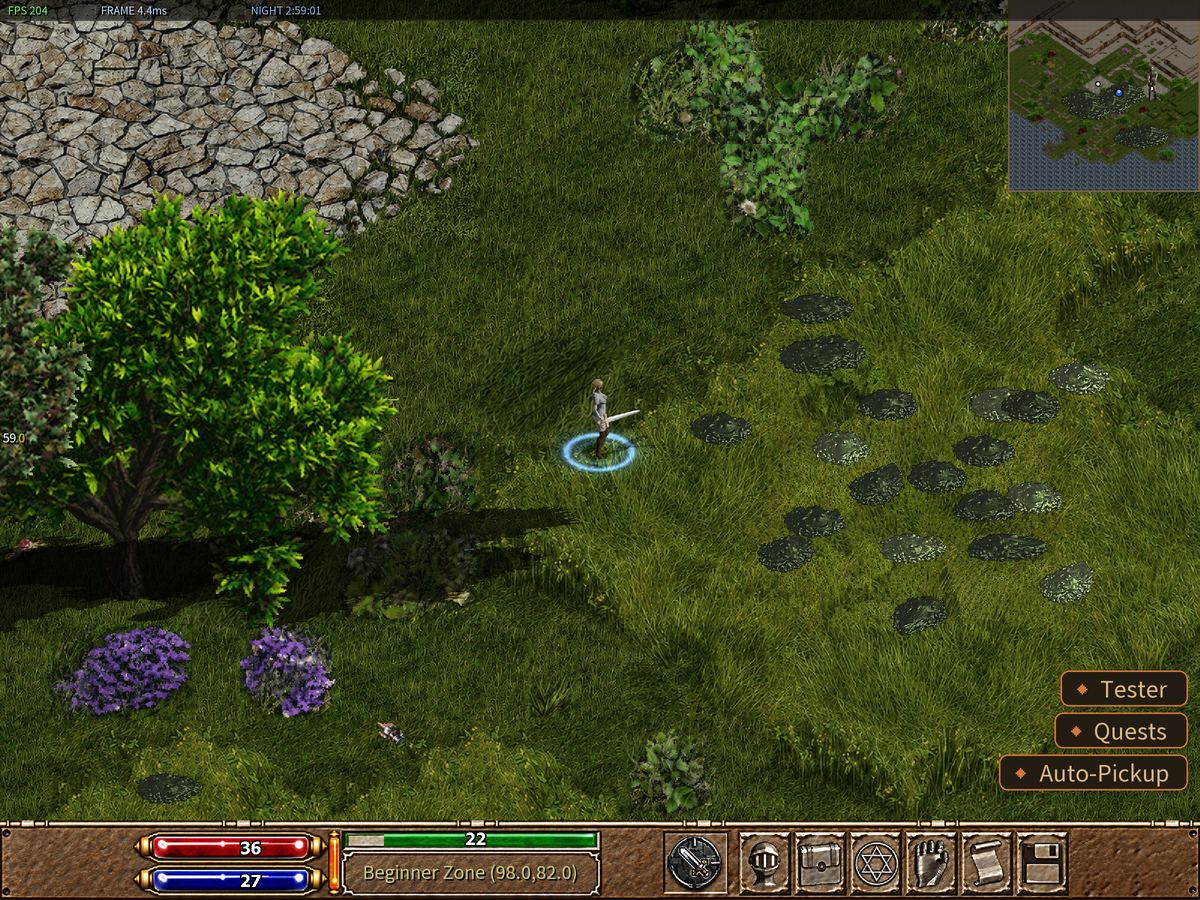
- You. Your hero is always in the middle.
- The bottom bar. Your bars and your buttons.
- The minimap. A small map in the top right corner.
- A monster. Players call monsters mobs. This one is a Slime. In daylight it looks like a flat grey-green blob, a bit like a stone. Put your mouse on it and its name appears.
Your bars

- Red bar — health. Players write HP (hit points). It is your life. If it reaches zero, you die.
- Blue bar — mana. Players write MP (magic points). Spells use it up.
- Green bar — stamina. Players write SP (stamina points). It is your energy. Running uses it up.
- Thin standing bar — hunger. It goes down slowly as you play. Eat to fill it.
- Thin green line across the top of the bar — experience. Players write EXP. It fills as you beat monsters. When it is full, you gain a level.
- The small box shows the name of the place you are in and where you are standing. Hold Ctrl and it shows how much experience you still need.
The number on each bar is exactly how much you have left.
Your buttons
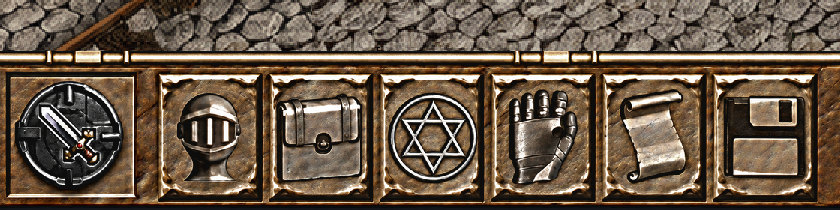
- The round button shows if you are ready to fight. Put your mouse on it and it says Peace, Attack or Safe Attack. Click it to switch. The Fighting page explains it.
- Character — your hero's numbers and the clothes you are wearing.
- Inventory — your bag.
- Magics — your spell book.
- Skills — things you get better at by doing them.
- Chat Log — everything people said.
- System Menu — sound, screen, language and how to leave the game.
Put your mouse on any button and its name appears.
The minimap
The minimap is in the top right corner. Its real name is the guide map. Press Ctrl+M to hide it or show it. If you Double Click a spot on it, your hero walks there. Drag it anywhere on the screen, and roll the mouse wheel over it to make it bigger or smaller. It also shows a monster icon at the centre of each monster pit; to hide them, there and on the world map, turn off Minimap Pits in the F12 menu, or press Ctrl+Z.
Messages
Words appear on your screen when something happens: you picked up an item, you are hungry, someone spoke. Read them. They often tell you what went wrong.
Try it now
- Find your red, blue and green bars.
- Put your mouse on each of the seven buttons and read its name.
- Hold Ctrl and look at the small box.
- Press Ctrl+M twice.